
This workspace is an example integration of NVIDIA Isaac Sim with Flexiv Elements Studio, connected via Flexiv Sim Plugin. It demonstrates how to use the Flexiv Sim Plugin API alongside the Nvidia Isaac Sim API to relay robot control commands and physics state between Elements Studio and Isaac Sim, so that simulated Flexiv robots are driven by the same force-torque controller used on real robots and can be programmed with the Flexiv RDK.
┌─────────────────────────────────────────┐
│       User Program with RDK Client      │
│          (send robot commands)          │
└───────────────────┬─────────────────────┘
                    │ RDK API
                    ▼
┌─────────────────────────────────────────┐
│         Flexiv Elements Studio          │
│   (simulated controller + RDK Server)   │
└───────────────────┬─────────────────────┘
                    │ Flexiv Sim Plugin API
                    ▼
┌─────────────────────────────────────────┐
│          Flexiv Isaac Sim Workspace     │
│ (Flexiv Sim Plugin API + Isaac Sim API) │
└───────────────────┬─────────────────────┘
                    │ Isaac Sim API
                    ▼
┌─────────────────────────────────────────┐
│           NVIDIA Isaac Sim              │
│           (physics engine)              │
└─────────────────────────────────────────┘
| Supported OS | Supported processor | Supported language | Isaac Sim version |
|---|---|---|---|
| Ubuntu 22.04 | x86_64 | Python | 6.x |
This branch targets NVIDIA Isaac Sim 6.x. For Isaac Sim 5.x, use the
isaac-sim-5branch.
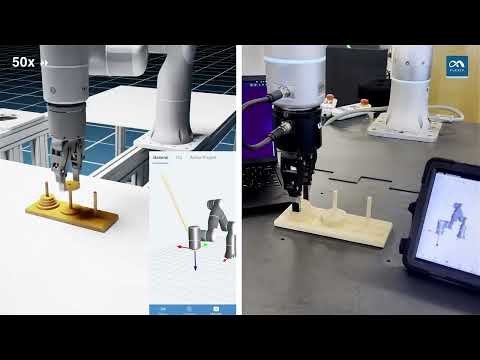
Rizon_PIH_in_isaac_sim.mp4
Rizon_polish_in_isaac_sim.mp4
dual_Rizon_polish_in_isaac_sim.mp4
Before using the Flexiv Isaac Sim Workspace, install Flexiv Elements Studio and create a simulated robot by following Flexiv Elements Studio Setup.
-
Install NVIDIA Isaac Sim.
-
Note down Isaac Sim's installation directory, e.g.
~/isaacsim. -
Run the following script in this repo to install Flexiv's Isaac Sim extensions and apps to the Isaac Sim installation directory so that Isaac Sim can load them:
bash install_ws.sh <isaac_sim_root_dir>For example:
bash install_ws.sh ~/isaacsim -
Install the Python dependencies into Isaac Sim's bundled Python:
cd <isaac_sim_root_dir> ./python.sh -m pip install spdlog -
Install the
flexivsimpluginPython package into Isaac Sim's bundled Python. This is the middleware that connects the Flexiv-Isaac Bridge App to Elements Studio, so its version must match your robot software (Elements Studio) and RDK version.Look up the plugin version compatible with your robot software (Elements Studio) version in the Flexiv Sim Plugin release notes.
cd <isaac_sim_root_dir>
./python.sh -m pip install -i https://test.pypi.org/simple/ flexivsimplugin==<version>
To verify that the workspace setup is successful, run the example Python application:
cd <isaac_sim_root_dir>
./python.sh standalone_examples/api/isaacsim.robot.manipulators/flexiv/follow_target_with_rmpflow.py extsDeprecated/isaacsim.robot.manipulators.examples/data/flexiv/Rizon4/Rizon4.usda
WARNING: When running Isaac Sim for the first time, it takes a couple of minutes to warm up the shader cache. You will notice that the CPU is fully loaded and the Isaac Sim window seems frozen. Please wait patiently and do not force quit the program.
After the example program is up and running, select the TargetCube prim under World from the Stage view, then drag it around, the robot TCP should follow the cube.
-
Edit the configuration file
standalone_examples/api/isaacsim.robot.manipulators/flexiv/single_arm_app_config.yamlaccording to the instructions in it. -
Start Flexiv-Isaac Bridge App using configurations in
single_arm_app_config.yaml:cd <isaac_sim_root_dir> ./python.sh standalone_examples/api/isaacsim.robot.manipulators/flexiv/flexiv_isaac_bridge_app.py --config standalone_examples/api/isaacsim.robot.manipulators/flexiv/single_arm_app_config.yaml -
The app will launch an Isaac Sim window and start the physics loop (i.e. Play) automatically.
-
Go back to Elements Studio, then restart the exited simulator by toggle on the Connect button.
-
Wait for the connection to establish. If the connection is successful, you should see in Elements Studio a robot at home pose with no error.
To make the simulated arm match a specific physical robot's per-unit kinematic
calibration, generate a calibrated per-robot USD from RDK and point the config's
usd: at it. See tools/calibration/README.md.
- In Elements Studio, use the simulated motion bar to enter free-drive mode.
- Use Cartesian or joint jogging to move the robot around, check that the robot in Isaac Sim is also moving.
- Jog the robot along Cartesian Z axis and let the robot make contact with the desk in the example environment, check that a large TCP force is rendered as an orange line in Elements Studio visualization.
- Create a test project and add some primitives, then execute the project and check that the robot in Isaac Sim is acting as desired.
To restart the whole setup after the first run:
- Start the Flexiv-Isaac Bridge app first.
- Then start the simulated robot in Elements Studio.
If you have made some changes and need to restart the Isaac Sim app:
- Close Flexiv-Isaac Bridge app.
- In Elements Studio, click CHANGE CONNECTION, then toggle off the Connect button to close the simulated robot. You do not need to exit the whole Elements Studio program.
- Restart Flexiv-Isaac Bridge app.
- Toggle on the Connect button to restart the simulated robot.
Alternatively, you can leave the simulated robot running and just restart the Isaac Sim app. The simulated robot in Elements Studio will sync with Isaac Sim after the app is restarted. However, soft error might occur and you can just clear them from Elements Studio and continue to normal operations.
This framework supports simulating and controlling multiple robots:
-
Add multiple robots in the configuration file
standalone_examples/api/isaacsim.robot.manipulators/flexiv/dual_arm_app_config.yaml. -
Start Flexiv-Isaac Bridge App using the updated configurations in
dual_arm_app_config.yaml:cd <isaac_sim_root_dir> ./python.sh standalone_examples/api/isaacsim.robot.manipulators/flexiv/flexiv_isaac_bridge_app.py --config standalone_examples/api/isaacsim.robot.manipulators/flexiv/dual_arm_app_config.yaml -
Find a second Ubuntu 22.04 computer, connect it to the first computer via Ethernet cable. Then on the first computer, check that this wired Ethernet connection is visible in the network settings, then change the IPv4 setting of this wired connection to "Shared to other computers". Alternatively, connect both computers to the same network router via wired connection.
-
Make sure both computers are able to ping each other.
-
Install Flexiv Elements Studio on the second computer, then create a new simulated robot. Now each computer has a robot controller with Elements Studio.
-
Start the first simulated robot on the first computer, then wait for connection with Isaac Sim. You should see one of the robots in Isaac Sim moves a little bit when the connection is established.
-
Start the second simulated robot on the second computer, then wait for connection with Isaac Sim. You should see the other robot in Isaac Sim moves a little bit when the connection is established.
-
Execute test projects from both Elements Studios and check that both robots are working in Isaac Sim.
You can collect data from the simulated robot(s) using Flexiv DDK (Data Distribution Kit) at up to 1kHz frequency:
- Set up Flexiv DDK according to the instructions found in the repo.
- Start Isaac Sim and Elements Studio.
- Run DDK programs to collect data from one or more simulated robots.
Note: the DDK program doesn't have to run on the same computer as the Elements Studio, it can be any computer that's under the same local network as the Elements Studio computer.
Besides using the drag-and-drop graphical interface in Elements Studio to create projects to control the simulated robot(s), you can also control them programmatically using Flexiv RDK (Robotic Development Kit) in a real-time or non-real-time manner:
- Set up Flexiv RDK according to the instructions found in the repo.
- Start Isaac Sim and Elements Studio.
- In Elements Studio, go to Settings → Remote Mode, then enable Remote Mode and select Ethernet from the drop-down list.
- Restart the simulated robot by clicking CHANGE CONNECTION, then toggle off and on the Connect button.
- Run RDK programs to control one or more simulated robots.
Note: the RDK program doesn't have to run on the same computer as the Elements Studio, it can be any computer that's under the same local network as the Elements Studio computer.